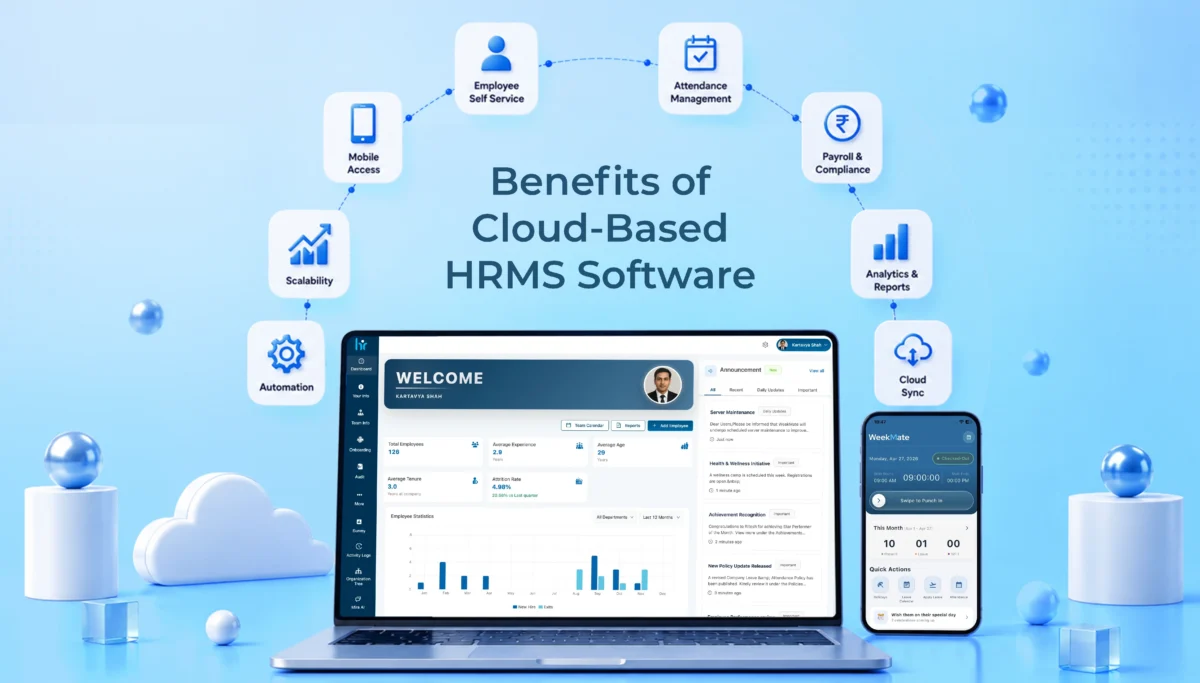
Benefits of Cloud-Based HRMS Software and How to Select a Secure Solution

HR isn’t the paper-based file system and spreadsheets anymore. That’s a thing of the past in most businesses.

More companies are shifting from traditional, on-premise HR systems to cloud-based HRMS software. It’s not a fad. It addresses real-world challenges such as slow processes, fragmented data, and IT departments grappling with server maintenance.

This article will explain what exactly cloud HRMS is, its benefits, and how to determine whether or not it’s secure enough to send your employee data.

What Is Cloud-Based HRMS Software?

Definition of Cloud HRMS

An HRMS, or Human Resource Management System, is software that handles the day-to-day work of managing people. Things like payroll, attendance, leave, onboarding, and performance reviews.

Adding ‘cloud technology’ just means this software runs over the internet instead of being installed on your own machines. You’re not setting up anything on local servers. You’re using a service hosted somewhere else.

How Cloud HRMS Works

The vendor hosts the software on their own servers, and you access it through a web browser or a mobile app – no installation needed on your end. Whether you’re at your desk or halfway across the country, the system works the same way.

Pricing is usually subscription-based, billed monthly or annually depending on your employee count. You’re not paying for infrastructure. You’re paying to use the service.

Cloud HRMS vs On-Premise HRMS

The key distinction is the ownership and operation of infrastructure. Cloud-based HRMS means the vendor will manage servers, deployment and updates. With on-premise HRMS, your internal IT team manages it.

Another difference is accessibility. Cloud systems are designed to be accessed from all places and on all gadgets. On-premise systems may only be able to be used within your internal network, making them somewhat restrictive for remote or hybrid teams.

Costs are also different. Typically, cloud-based HRMS software has a cheaper initial cost and a recurring cost that is fixed. On-premise HRMS typically demands a bigger startup investment in hardware and licenses, plus maintenance expenses.

Cloud vs On-Premise HRMS: The Honest Trade-Offs

Advantages of Cloud HRMS

Implementation is faster- you’re often up and running in days or weeks, not months. Upfront investment is lower since there’s no infrastructure to buy. You get anywhere access, which matters a lot more now than it used to. And updates happen automatically, so you’re not stuck on outdated software waiting for your IT team to schedule an upgrade.

Advantages of On-Premise HRMS

That said, on-premise isn’t obsolete. It gives you greater control over your infrastructure, which some industries and larger enterprises genuinely need. There’s also more customization flexibility in certain cases, and some businesses simply prefer hosting sensitive data internally rather than handing it to a third party.

Potential Limitations of Cloud HRMS

Cloud HRMS depends on internet connectivity – no connection, no access, at least temporarily. There are ongoing subscription costs instead of a one-time purchase. And you’re relying on the vendor’s reliability and roadmap, which introduces a degree of vendor dependency you don’t have with an in-house system.

Potential Limitations of On-Premise HRMS

On the flip side, on-premise systems come with higher setup and maintenance expenses. You need dedicated IT resources to keep things running. And upgrades tend to move slower, since your team has to plan, test, and schedule them manually instead of getting them pushed automatically.

Comparison Table

Factor

Cloud HRMS

On-Premise HRMS

Cost

Lower upfront, ongoing subscription

Higher upfront, lower recurring

Security responsibility

Shared between vendor and business Entirely with internal IT
Scalability Easy, add users anytime

Requires infrastructure changes

Maintenance

Handled by vendor

Handled by internal team

Accessibility

Anywhere, any device

Usually limited to internal network

Upgrade process

Automatic

Manual, scheduled

The Real Benefits of Cloud HRMS for Indian Businesses

Let us go through some benefits of cloud HRMS that Indian businesses can experience:

Lower Total Cost of Ownership

No servers to buy, no dedicated hardware refresh cycles, and lower IT maintenance costs overall. Pricing is predictable too – a monthly or annual fee instead of unpredictable maintenance bills showing up when something breaks.

Easy Scalability

Adding new employees doesn’t mean adding new infrastructure. Whether you’re a startup adding your first ten hires or an enterprise scaling into new markets, the system flexes with you instead of requiring a rebuild.

Support for Remote and Hybrid Workforces

There are self-service portals that let employees check their own leave balance or update their details without emailing HR. Further, mobile attendance and leave management let employees check in from wherever they’re working. And access from multiple locations just works, without extra setup.

Automatic Updates and Compliance Support

Regular feature enhancements roll out without you doing anything. Payroll and statutory compliance updates happen automatically as rules change, which matters a lot in India where tax and compliance requirements shift fairly often. That alone reduces a huge chunk of administrative burden.

Improved Employee Experience

Self-service capabilities mean employees aren’t waiting on HR for basic requests. HR processes move faster overall. And there’s better transparency. People can see their own records, requests, and approvals without having to ask.

Centralized HR Data Management

Everything sits in one system instead of scattered spreadsheets and files. That means less manual record keeping and better reporting since all the data is already in one place.

Faster Decision-Making

Real-time dashboards give you workforce insights as they happen, not a week later in a static report. That means HR planning becomes something you do with current data, not last month’s.

Is Cloud HRMS Secure? What to Verify Before You Trust a Vendor

Understanding Cloud Security Myths

There’s a common assumption that cloud automatically means less secure. In practice, it’s often the opposite. Most vendors invest more in security infrastructure than a typical mid-sized company could build on its own. Security works on a shared responsibility model: the vendor secures the platform itself, while you’re responsible for managing access properly on your end.

Security Certifications to Look For

Look for ISO 27001 and SOC 2 certifications at minimum. If you’re dealing with any international employee data, check for GDPR readiness tool. And ask about the certifications held by the actual data centers the vendor uses, not just the software company itself.

Data Protection Measures

Encryption should cover data both at rest and in transit. Ask how backups are secured and how often they run. And confirm there’s an actual disaster recovery plan, not just a vague assurance that it’s handled.

Access Control Features

Role-based permissions should be standard, so employees only see what’s relevant to them. Multi-factor authentication and single sign-on aren’t extras anymore. They’re baseline expectations for any serious HRMS vendor.

Data Storage and Residency Considerations

Know exactly where your employee data physically sits. This matters for compliance with Indian data protection regulations, and it’s a reasonable thing to ask any vendor directly rather than assume.

Vendor Transparency Checklist

Before confirming, check if the vendor is upfront about their security policies, uptime guarantees, incident response process, and whether they maintain audit logs and active monitoring. A vendor who’s not clear on any of these is worth a second look.

Questions to Ask Before Signing

A few worth asking directly: How often are backups performed? What happens if the service is interrupted? How exactly is customer data protected? And what support is available if a security incident actually happens?

Must-Have Features in a Cloud HRMS Solution

Core HR Management

An employee database, digital document management, and organizational charts should be the baseline, not an add-on.

Payroll and Compliance

Make sure that automated payroll processing, accurate tax calculations, and statutory compliance support get updated as regulations change.

Attendance and Leave Management

Attendance tracking, shift scheduling, and leave workflows that don’t require manual approval chains over email.

Employee Self-Service (ESS)

Employees should be able to update personal information, request leave, and access payslips. There should be no need for the HR to do it for them.

Recruitment and Onboarding

Applicant tracking, digital onboarding workflows, and offer management that don’t rely on printed paperwork.

Performance Management

Goal setting, structured performance reviews, and space for continuous feedback rather than a once-a-year formality.

Learning and Development

Training management, skill tracking, and certification monitoring are mostly useful for industries with heavy compliances.

Analytics and Reporting

HR dashboards, workforce metrics, and the ability to build custom reports without needing a data analyst on standby.

Mobile Accessibility

A mobile app that actually works well, plus manager approvals that can happen on the go instead of piling up.

Integrations

Support for connecting with accounting software, ERP systems, biometric devices, and collaboration tools your team already uses. Platforms like WeekMate bundle a lot of this natively, which cuts down on the number of separate tools you need to manage.

How to Choose the Right Cloud HRMS for Your Size and Growth

Assess Your Current HR Challenges

Start honestly. Are you dealing with manual processes eating up time? Compliance risks you’re not fully on top of? Gaps in employee experience that keep coming up in feedback? Your priorities should follow from your actual pain points.

Define Business Requirements

Before you begin your search, make sure you understand your business needs in terms of employees, location and any industry specific requirements. It is not the same thing that a 30-person start-up and a 3,000-person manufacturer are buying.

Evaluate Scalability

Imagine where your workforce will be in 2-3 years – not now. If expansion to multiple locations is planned for, look into it; if it isn’t, check what additional modules are available as the business expands.

Compare Security and Compliance Standards

Don’t take a feature sheet’s word for it. Leverage the certification standards directly compared, data privacy controls, and the audit options to each vendor you have on your short list, and ask the questions from section 5.7.

Review User Experience

Test the system to see how easy it is to use, because, no matter how powerful the system is, if your workers aren’t able to use it, it will not get used. Focus in particular on mobile, as much of daily usage is there.

Consider Vendor Support

Look at implementation assistance, available customer support channels, and whether training resources are actually good or just a PDF nobody reads.

Analyze Total Cost

Don’t limit yourself to a subscription price. Take into account implementation charges, integration expenses, and directly inquire about possible concealed charges that can emerge later.

Request a Product Demo

Request to test critical workflows for your business – not the vendor’s showpiece walk-throughs. Confirm reporting functionality and test its day-to-day manageability to understand how easy it is.

Create a Vendor Evaluation Checklist

Make a side-by-side comparison of shortlisted vendors in terms of features, security, pricing, scalability, support, and integrations. This is something that is simple to do, but it would be great to have it written down to make it less subjective.

Common Mistakes to Avoid

Choosing based solely on price, without weighing what you’re giving up on features or security. Skipping proper security due diligence because a demo looked polished. Overlooking future scalability because current needs feel manageable. Failing to involve both HR and IT stakeholders in the decision. And not testing the platform properly before committing to a contract.

Each of these feels minor at the moment. They rarely stay that way.

Conclusion

Cloud HRMS solution offers real flexibility, scalability, and operational efficiency. This isn’t just marketing language; it’s a genuine shift in how HR functions day to day. But security isn’t something to assume by default. It comes down to choosing the right vendor and actually verifying their protections instead of taking their word for it.

The best HRMS solution is the one that fits your current requirements while leaving room for where your business is headed next. A structured evaluation process – clear requirements, proper security checks, real demos, and honest cost comparisons – helps you get the most out of your investment while keeping risk low.

FAQs

1. Is cloud HRMS suitable for small businesses?

Yes. Cloud HRMS is suitable for small businesses, as they do not have to come up with a large sum of money to buy the on-premise system. They have smaller teams and hence can function with a cloud HRMS.

2. How long does it take to implement a cloud HRMS?

Most implementations take a few days to a few weeks, depending on the vendor and size of the company, as compared to the on-premise implementation where most implementations take a few months.

3. Can cloud HRMS integrate with existing accounting or ERP systems?

Many cloud HRMS systems, along with WeekMate, can integrate with popular accounting software, enterprise resource planning (ERP) systems and biometric devices. This makes it easy for organisations to function.

4. What happens to our data if we switch vendors later?

Trustworthy vendors offer an option to export the data. Be sure to verify this in the vendor evaluation process, before signing on the dotted line.

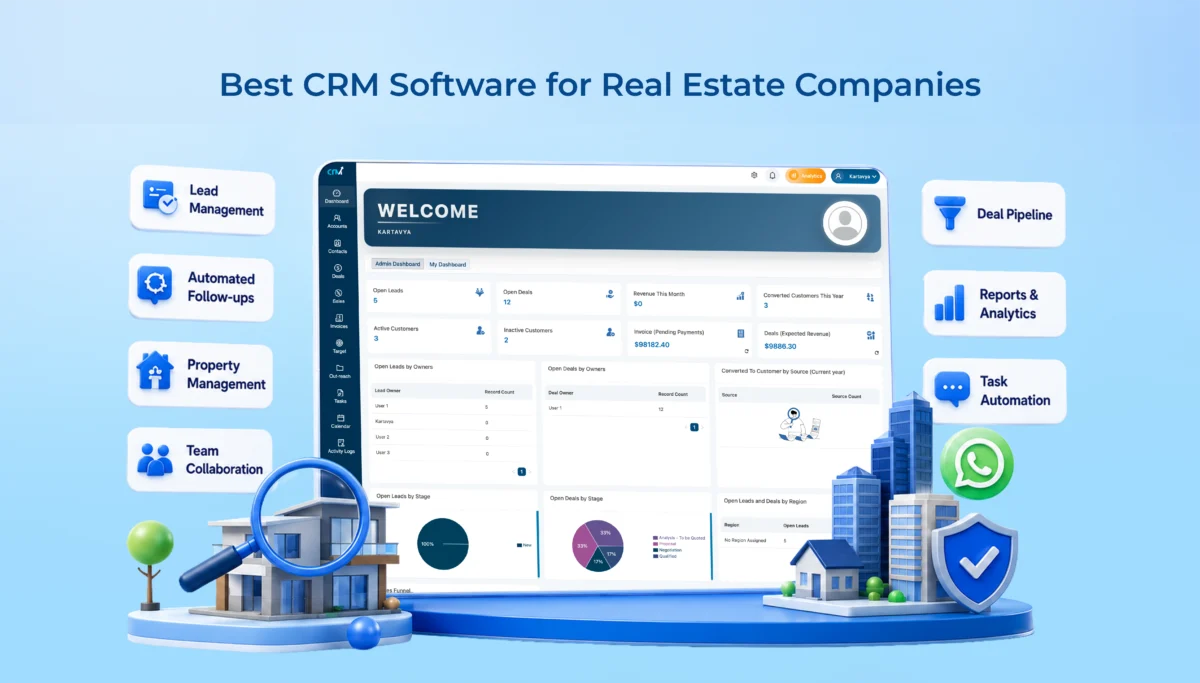
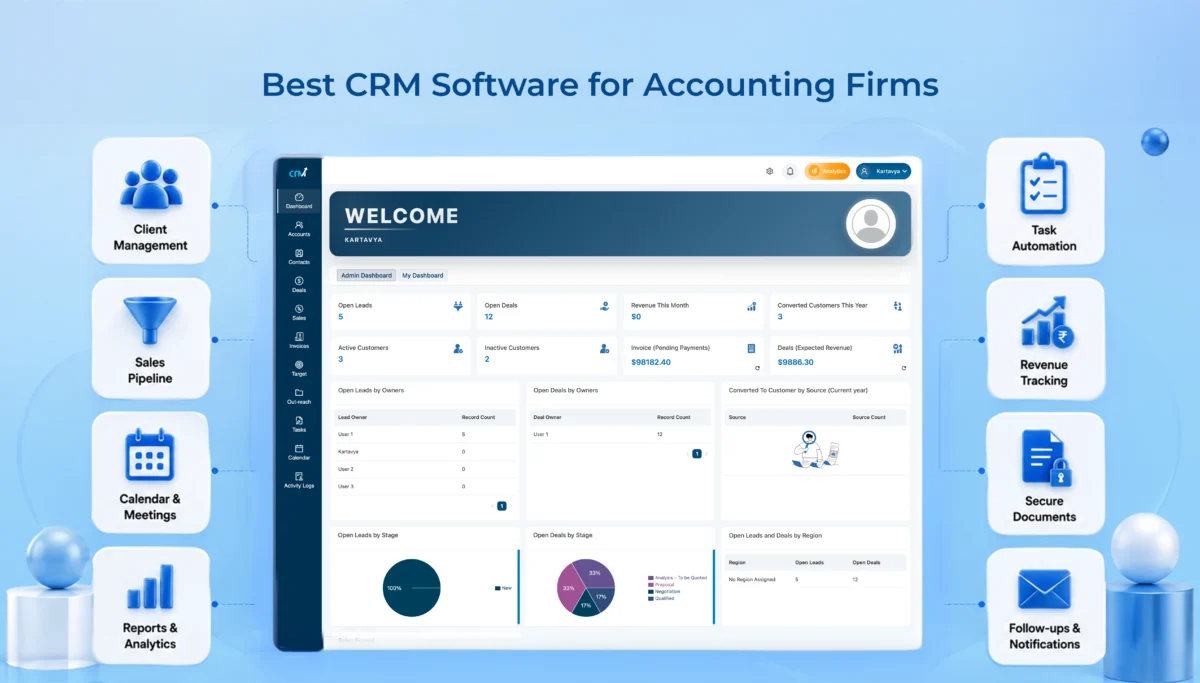
8 Best CRM Software for Accounting Firms (2026 Comparison Guide)

Running an accounting firm today is not just about numbers anymore. It’s about relationships. Follow-ups. Timelines. Deadlines that don’t forgive delays.

And somewhere in between client calls, tax filings, and audits, things slip.

That’s exactly where CRM software for accounting firms steps in. Not as another tool, but honestly, more like a control center.

Let’s break this down in a simple, practical way. No fluff, no jargon.

What Is Accounting CRM Software?

A CRM, or Customer Relationship Management system, is where all your client information lives. Not just names and email addresses. It holds conversations, reminders, documents, tasks, and pretty much every touchpoint you’ve ever had with a client.

For accounting firms, that same idea gets sharper and more specific. An accounting CRM keeps track of your clients’ financial history, upcoming tax deadlines, follow-ups for pending documents, communication logs, and revenue tracking, all in one place.

Put simply, it’s your firm’s memory. The difference is, this one never forgets a deadline, never loses a document request, and never lets a client slip through the cracks.

Why Accounting Firms Need CRM Software

You can run a small firm without a CRM, sure. But once you cross even 20 – 30 clients, things get messy. Let’s talk about where CRMs actually make a difference.

1. Managing Leads and Prospects Efficiently

New inquiries come from everywhere -emails, referrals, website forms. Without a system, they get lost. Or worse, ignored.

A CRM keeps all leads in one place, tracks where they came from, and shows what needs to happen next. No guesswork.

2. Improving Client Retention and Relationships

Clients don’t leave because of pricing most of the time. They leave because they feel ignored.

Missed follow-ups. Delayed replies. No proactive communication.

A CRM helps you stay consistent. Even small reminders, like checking in before tax season, can make a big difference.

Must Read: How Custom CRM Solutions Improve Customer Retention

3. Automating Follow-Ups and Reminders

This one’s huge. Instead of remembering everything manually, you set automated reminders:

  • “Follow up for pending GST documents”
  • “Send tax filing reminder”
  • “Invoice due in 3 days”

And the system nudges you. Simple, but powerful.

4. Tracking Sales Opportunities and Revenue

If your firm is growing, you need visibility.

Who’s converting?
Which services bring revenue?
Where are deals getting stuck?

CRMs show you the full pipeline, not just closed clients.

5. Enhancing Team Collaboration

When multiple people handle the same client, confusion happens. A CRM ensures everyone sees:

  • Last communication
  • Pending tasks
  • Shared documents

No more “I thought someone else handled it…”

Suggested Read: Why Cloud Based CRM Software is Essential for Modern Businesses

8 Best CRM Software for Accountants (2026)

Alright, let’s get into the real comparison. Here are some of the best CRM tools accounting firms are actually using in 2026.

1. WeekMate CRM – Best CRM for Small and Mid-Sized Accounting Firms

WeekMate CRM is designed for accounting firms which need simplicity along with functionality. It combines client management, task tracking, and automation in one place. This helps teams stay organized without juggling multiple tools or overcomplicated systems.

Key Features

  • Client and lead management in one dashboard
  • Task and follow-up automation
  • Built-in invoicing and pipeline tracking
  • Integration with HR and operations modules
  • Real-time notifications and reminders

Pros

  • Easy to use (no steep learning curve)
  • Designed for SMEs and service businesses
  • Combines CRM + task + operations

Cons

  • Not ideal for very large enterprise setups

Pricing

Starts from custom pricing (typically more affordable than global CRM tools)

Why Accounting Firms Choose It

Because it solves multiple problems at once, without making things complicated.

2. HubSpot CRM – Best Free CRM for Accountants

HubSpot CRM is a good starting point for firms new to CRM tools. It offers essential features like contact management and pipeline tracking. Since it’s free to start, there’s no pressure or big investment upfront.

Key Features

  • Contact and lead management
  • Email tracking and notifications
  • Sales pipeline visibility
  • Meeting scheduling tools

Pros

  • Free plan available
  • Easy to use
  • Quick setup

Cons

  • Paid plans get expensive
  • Automation locked behind higher tiers

Pricing

Starts from $0 (free plan) and paid plans from ~$20/user/month

Why Accounting Firms Choose It

It removes the risk of getting started, since there is a free option, and that’s a big deal.

3. Zoho CRM – Best Affordable CRM for Accounting Practices

Zoho CRM is an affordable tool with strong customization and automation features. It is ideal for accounting firms wanting to streamline processes, manage clients efficiently, and integrate with other business tools without spending too much.

Key Features

  • Lead and client management
  • Workflow automation
  • Sales forecasting
  • Zoho Books integration

Pros

  • Budget-friendly
  • Flexible workflows
  • Strong integrations

Cons

  • Initial setup takes time
  • Interface isn’t the simplest

Pricing

Starts from ~$14/user/month

Why Accounting Firms Choose It

It balances cost and capability really well, especially for growing firms.

4. Salesforce CRM – Best Enterprise CRM for Large Accounting Firms

Salesforce CRM is a powerful, enterprise-level platform built for large accounting firms with complex needs. It offers deep customization, advanced automation, and detailed reporting, making it ideal for firms managing high volumes of clients and operations.

Key Features

  • Advanced automation
  • Deep customization
  • AI insights and forecasting
  • Enterprise reporting

Pros

  • Extremely powerful
  • Scalable for large firms
  • Industry standard

Cons

  • Expensive
  • Requires training
  • Long implementation time

Pricing

Starts from ~$25/user/month (can go up to $330+/user/month depending on features)

Why Accounting Firms Choose It

When operations get complex, simpler CRMs just don’t fit in anymore.

5. Pipedrive – Best CRM for Managing Accounting Sales Pipelines

Pipedrive focuses on simplifying the sales process with its visual pipeline approach. It helps accounting firms track leads, manage deals, and stay on top of opportunities, making it especially useful for teams actively working on client acquisition.

Key Features

  • Visual sales pipelines
  • Deal tracking
  • Activity reminders
  • Email integration

Pros

  • Very intuitive
  • Easy pipeline visibility
  • Fast onboarding

Cons

  • Limited accounting-specific features
  • Less focus on full client lifecycle

Pricing

Starts from ~$14/user/month

Why Accounting Firms Choose It

It keeps your sales process clear, and honestly, that clarity matters.

6. Freshsales – Best AI-Powered CRM for Accounting Firms

Freshsales helps you manage leads and automate communication using smart features. It’s useful for accounting firms that want to save time, stay organized, and handle client interactions more efficiently.

Key Features

  • AI lead scoring
  • Email automation
  • Built-in communication tools
  • Pipeline tracking

Pros

  • Smart insights
  • Good automation
  • Clean UI

Cons

  • AI features not always necessary for small teams
  • Learning curve for full usage

Pricing

Starts from $0 (free plan) and paid plans from ~$15/user/month

Why Accounting Firms Choose It

It helps prioritize work automatically, which saves time when things get busy.

7. Insightly – Best CRM for Client Relationship Management

Insightly combines CRM with project management features. This makes it useful for accounting firms handling long-term client work. It helps track relationships, manage ongoing tasks, and maintain visibility across the entire client lifecycle in one system.

Key Features

  • Contact and project management
  • Task tracking
  • Workflow automation
  • Reporting tools

Pros

  • CRM + project management combo
  • Good lifecycle tracking
  • Useful for ongoing engagements

Cons

  • No free plan
  • Slightly dated interface

Pricing

Starts from ~$29/user/month

Why Accounting Firms Choose It

It connects client relationships with actual work, not just sales.

8. Monday CRM – Best CRM for Workflow Automation

Monday CRM is a flexible tool that helps you manage tasks and workflows visually. It’s a good fit for accounting firms that want a simple, customizable way to organize work and team collaboration.

Key Features

  • Workflow automation
  • Visual dashboards
  • Task and team collaboration
  • Integration support

Pros

  • Highly customizable
  • Easy to visualize workflows
  • Strong collaboration tools

Cons

  • Not accounting-specific
  • Can feel overwhelming initially

Pricing

Starts from ~$10/user/month

Why Accounting Firms Choose It

It adapts to your workflow, instead of forcing you into one.

Quick Comparison Table

CRM Tool Best For Complexity Pricing Level
WeekMate CRM SMB accounting firms Low Affordable
HubSpot CRM Beginners Low Free → High
Zoho CRM Budget-conscious firms Medium Affordable
Salesforce Enterprises High Expensive
Pipedrive Sales-focused firms Medium Moderate
Freshsales AI-driven workflows Medium Moderate
Insightly Project + client management Medium Moderate
Monday CRM Workflow automation Medium Moderate

Also Check: List of Top CRM Software for Manufacturing Companies

Key Features to Look for in CRM Software for Accounting Firms

Not all CRMs are built the same. And honestly, choosing the wrong one can slow you down instead of helping.

Here’s what actually matters:

  • Client Database Management: Keeps all client details – contacts, documents, and interaction history, in one place so nothing gets lost or scattered.
  • Task and Activity Tracking: Helps you stay on top of deadlines and daily work without constantly second-guessing what’s pending.
  • Automated Follow-Ups: Sends reminders and follow-ups automatically, so you don’t miss important client touchpoints (because let’s be honest… manual reminders slip).
  • Document Management: Stores financial files, agreements, and reports securely, making them easy to access whenever needed.
  • Email and Communication Tracking: Tracks every conversation so you always know what was discussed and when – no more digging through inbox chaos.
  • Custom Reports and Analytics: Gives you clear insights into performance, revenue trends, and growth, helping you make smarter decisions.
  • Data Security and Compliance: Protects sensitive financial data and ensures your firm stays compliant with regulations; this one isn’t optional.

Also Read: Key CRM Modules That Help Businesses Grow Faster

How to Choose the Right CRM for Your Accounting Business

There’s no “one best CRM” for everyone. It depends a lot on various factors of your business. Some of the factors to be considered to choose the best CRM for accountants:

  • Consider Your Firm Size: The size of your accounting firm plays a big role in choosing the right CRM. Smaller teams usually need something simple and easy to manage. Larger firms, on the other hand, often need advanced customization and multi-user flexibility.
  • Identify Your Growth Goals: If you’re planning to scale quickly, you’ll need a CRM that can grow with you. But if your focus is on stabilizing operations, then a simpler, more structured system might work.
  • Evaluate Integration Requirements: Your CRM should connect smoothly with the tools you already use – especially accounting software. You will end up doing a lot of manual work without proper integration. This defeats the whole purpose.
  • Compare Automation Features: CRM really starts to make a difference with the automation features. The right features can save hours every week. For example, follow-ups to task reminders, they can be automated. It may not seem huge at first. But it adds up gradually.
  • Set a Realistic Budget: You can easily get carried away by feature-heavy tools. Not all of them are necessary. Focus on what your firm actually needs right now and avoid overspending on things you may never use. A practical choice usually wins here.

Benefits of Using CRM Software in an Accounting Firm

Just like all other firms have their own benefits of using CRM software, even accounting firms can benefit:

  • Better Client Retention: When clients feel heard and taken care of, they stick around longer; it’s that simple. A CRM helps you stay consistent with follow-ups and communication. Over time, this builds trust, and trust keeps clients coming back.
  • Faster Response Times: Endless emails and spreadsheets are now a thing of the past. Everything you need is in one place, organized for you. This means faster response times, and clients really appreciate that.
  • Increased Referral Opportunities: Happy clients tend to talk, and refer. When relationships are managed well and communication stays smooth, people naturally recommend your services. A CRM quietly supports this by helping you stay connected over time.
  • Improved Team Productivity: Processes become clearer, and collaboration is less chaotic. Your team is able to spend more time on important tasks by relying on CRM software to manage monotonous tasks. It allows you to work better, not harder.

Final Verdict: Which CRM Software Is Best for Your Accounting Firm?

Powerful CRM systems are not necessary for small to mid-sized accounting firms. You need the most practical one. Something your team uses daily.

Many mid-sized accounting firms can choose among Weekmate CRM, Zoho CRM, or HubSpot. On the other hand, Salesforce is a powerful CRM, and its complexities are justified among large-scale accounting firms.

The most appropriate CRMs, among the many options available to small and mid-sized accounting firms, are the ones that will best meet the needs of your workflow.

Final Thought

If you’re still managing clients on spreadsheets, it might feel manageable right now. But growth breaks that system.

A good CRM doesn’t just organize your work; it quietly removes friction you didn’t even realize was there. And once that happens, you don’t go back.

At the end of the day, choosing the right CRM accounting software can make a noticeable difference in how smoothly your firm operates and how clients experience your service.

Frequently Asked Questions

1. What is the best CRM software for accounting firms?

There’s no single answer. For most small- to mid-sized firms, WeekMate eCRM or Zoho CRM works well. Larger firms often go with Salesforce.

2. Do small accounting firms need a CRM?

Yes. Especially if you’re handling multiple clients. Even basic CRM usage improves organization and client communication, which are really important for accounting firms.

3. Can CRM software integrate with accounting tools?

Most modern CRMs integrate with tools like QuickBooks, Zoho Books, and others. It is always advised to check the integration feasibility before choosing.

4. What CRM features are most important for accountants?

Features that are important for accountants include client management, task tracking, automation, and document handling, which are the core ones.

5. How much does CRM software cost?

It ranges from free (like HubSpot Basic) to premium enterprise pricing (like Salesforce). Mid-range tools are usually the sweet spot.

6. Is a CRM worth it for tax consultants and accounting professionals?

Absolutely. It reduces missed follow-ups, improves client experience, and helps scale operations without chaos. These are all some of the crucial factors of CRM for tax consultants and accounting professionals.

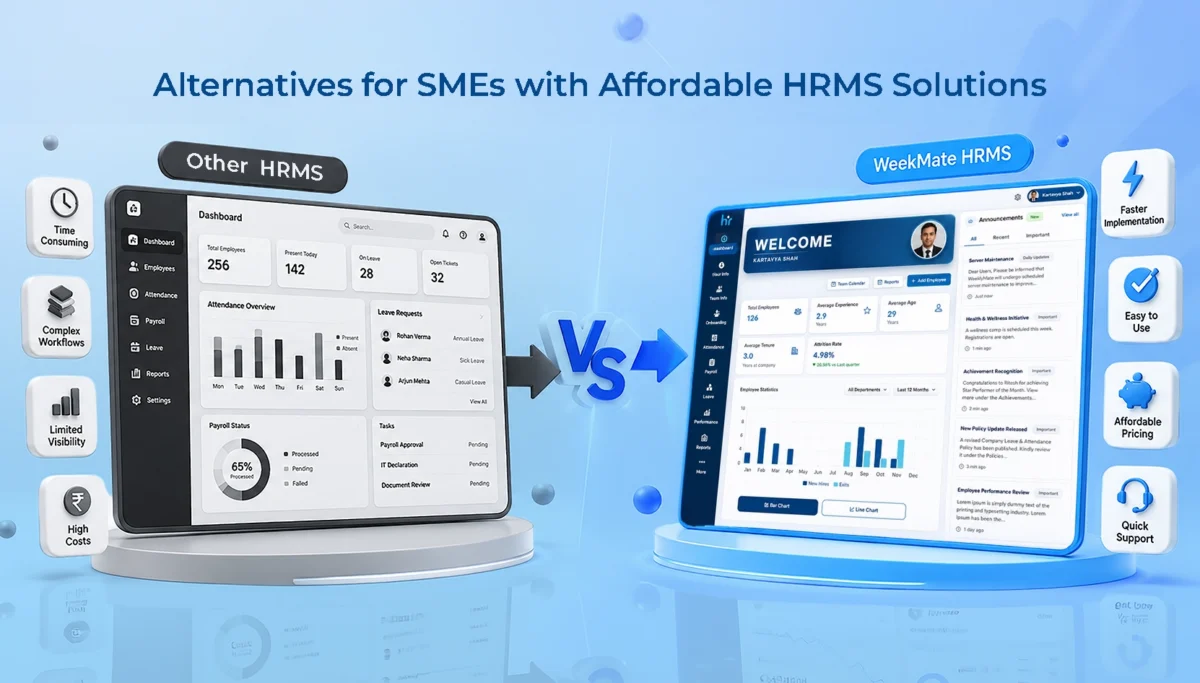
Best Keka Alternatives for SMEs with Affordable HRMS Solutions

If you run a small or mid-sized business, you probably understand this. Your HR person is switching around spreadsheets, a WhatsApp group for leave requests, and a payroll calculation that eats up a full day every month. At this point, HR automation isn’t a nice-to-have. It’s survival.

Keka has built a solid name for itself here. It brings core HR functions into one system, and it works well for growing businesses that need payroll accuracy and better control over operations. Fair enough. But solid doesn’t always mean right for you. A lot of SMEs start looking elsewhere once they hit certain walls – usually pricing, setup, or just using way less of the platform than they’re paying for.

This piece covers why that happens and where a cloud-based HRMS solution, WeekMate, fits in as a genuine option for Keka alternatives.

Why SMEs start looking at Keka alternatives

Let’s understand why SMEs start looking at alternatives to Keka.

Rising HR Automation Needs

HR isn’t a once-a-month payroll run anymore. As teams grow, even a lean 20-person company starts feeling pressure points that used to only bother large enterprises.

Workforce management gets harder to keep up with – attendance, leave, shift changes, and employee records stop being manageable on spreadsheets once headcount crosses a certain point.

On top of that, compliance and payroll complexities add real risk. Tax rules, statutory filings, and salary structures often change so much that tracking them manually isn’t just inconvenient; it’s a liability waiting to happen.

Common Reasons SMEs Explore Alternatives

Most SMEs don’t leave a platform because it’s bad. They leave because it doesn’t quite fit where they are right now.

Budget constraints are usually the first trigger – paying for enterprise-tier pricing when you’re a 25-person team rarely makes sense long term. Feature requirements play a part too, since some teams need less than what’s on offer while others find something specific missing that Keka doesn’t prioritize.

Scalability concerns show up later, when a system that worked fine at launch doesn’t flex easily as the team grows. Ease of implementation matters just as much, especially for teams without a dedicated HR ops person, since heavy configuration and long onboarding timelines eat into time they don’t have.

And customer support expectations tend to be the deciding factor for a lot of SMEs – slow response times or generic ticket-based support feels a lot more painful when there’s no internal bandwidth to troubleshoot things alone.

What Actually Matters in an Affordable HRMS

Before comparing anything, it helps to know what “good enough” looks like for a growing team. A few things genuinely move the needle:

Payroll Management

Payroll management includes salary processing, tax calculations, statutory compliance – this needs to run quietly in the background without someone manually double-checking every payslip.

Attendance and Leave Management

Whether it’s biometric integration, shift scheduling, or simple leave tracking, employees should be able to use it without a training session.

Employee Self-Service Portal

Payslips, leave requests, attendance history – if employees can pull this up themselves, your HR team gets hours back every week.

Performance Management

Performance management tasks like goal setting, appraisals, and feedback are all ongoing processes and are not done like a once-a-year checkbox exercise.

Recruitment and Onboarding

Candidate tracking and digital onboarding save a surprising amount of chaos, especially when you’re hiring in bulk.

Reporting and Analytics

Dashboards and custom reports should help you make a decision, not just look nice in a screenshot.

Keka vs WeekMate HRMS: Feature Comparison

Here’s how the two stack up on the essentials in the Keka vs WeekMate HRMS comparison.

Feature

Keka

WeekMate HRMS

Payroll Automation

Yes, with strong compliance tools

Yes, built for Indian statutory compliance

Attendance Management

Biometric, geo-fencing, mobile punch-in

Biometric and mobile-based, straightforward setup

Leave Management

Comprehensive, some clicks to navigate

Simple, self-serve leave workflows

Performance Management

Advanced OKRs and appraisal cycles

Goal tracking and feedback, without the complexity

Employee Self-Service

Strong, well-reviewed

Strong, built for quick daily use

Mobile App

Available, occasional sync lag reported

Available, lightweight and responsive

Recruitment

Full ATS with resume parsing

Core hiring and onboarding tools

Expense Claims

Yes

Yes

Workflow Automation

Deep, customizable

Focused on what SMEs actually use

Pricing

Higher entry point, scales with tiers

Built with SME budgets in mind

Best For

Mid-size to large teams needing depth

SMEs wanting speed, simplicity, and value

It’s worth saying this plainly: Keka isn’t a lesser product. It’s just built with a broader net in mind – enterprise depth, more modules, more customization. WeekMate is built the other way around, starting from what a lean team actually uses daily and cutting out the rest.

Detailed Comparison: Keka vs WeekMate HRMS

Pricing & Affordability

This is usually the first thing SMEs check, and for good reason. Keka’s subscription costs follow a tiered structure that climbs as you add features like performance reviews and custom workflows. It means you often end up paying for modules you won’t touch for another year or two. There’s also a setup fee to factor in Keka’s case.

WeekMate keeps this simpler, with pricing built around what a small team actually needs right now rather than where it might be in three years, which tends to translate into better real value for SMEs working with tighter budgets.

Payroll Processing

Both platforms handle payroll automation reasonably well, covering salary calculations and tax compliance without much manual intervention. The difference shows up in how much setup it takes before things run smoothly.

Keka’s compliance support is thorough, particularly for larger, more complex payroll structures. WeekMate leans toward a lighter configuration process, which matters when your HR team is one or two people, and it handles salary revisions and adjustments without needing a lot of back-and-forth to get it right.

Employee Attendance and Payroll Software

Keka’s attendance tracking includes strong options like geo-tagging and biometric integration, along with shift management and overtime calculations for more complex scheduling needs.

WeekMate covers the same core ground – attendance tracking, shift management, and overtime calculations – with a simpler setup that’s easier for smaller teams to configure and maintain without dedicated technical support.

Performance Management

Keka offers a fairly advanced performance management suite, with KPI tracking, continuous feedback loops, and structured performance reviews suited to teams that want detailed appraisal cycles.

WeekMate covers the same fundamentals, but keeps the process more straightforward, so goal tracking and feedback don’t turn into a once-a-year exercise that eats up everyone’s time.

Employee Experience

Keka’s interface gets a lot of praise for being clean and easy to use, with good mobile access and self-service options for things like payslips and leave requests.

WeekMate handles the same everyday actions, but with fewer clicks along the way. That matters more than it sounds like, especially for employees who just want to check something quickly during work instead of digging through menus.

Customer Support & Implementation

This is often where SMEs notice the biggest difference. Keka’s setup process is smooth, but reviews suggest response times and training support can be inconsistent depending on the request.

WeekMate offers a quicker setup process with more hands-on onboarding and ongoing support that’s easier to reach when something needs fixing. It matters a lot for teams without a dedicated in-house HR ops person.

Top Keka Alternatives for SMEs

WeekMate HRMS

WeekMate integrates payroll automation, attendance and leave tracking, performance management, and employee self-service into a single platform. It does not pile up unnecessary features that most SMEs never use.

It’s best suited for small and mid-sized teams that want core HR functions handled well, without a long onboarding process or enterprise-level pricing. The pros are fairly clear – affordable pricing, quick setup, and a system employees can pick up without training.

On the potential limitations side, teams looking for very deep customization or highly complex enterprise workflows might eventually want something with more advanced configuration options as they scale further.

Other Popular Alternatives

A few other names tend to come up alongside WeekMate when SMEs are comparing options.

GreytHR is known for its straightforward payroll focus, with core strengths in statutory compliance and simple attendance tracking, making it a solid fit for smaller teams that mainly need payroll sorted out.

Zoho People works well for businesses already using other Zoho products, offering strong core strengths in integration and ease of use, and suits teams of almost any size that are already inside that ecosystem.

HROne offers a bit more flexibility for growing mid-market teams, with strengths around workflow customization. It tends to work better once a company starts scaling past the smallest team sizes.

Darwinbox is compatible with larger and more complex organizations. Its strengths are enterprise-grade analytics and deep customization. This makes it a better fit for bigger businesses than for early-stage SMEs.

Benefits of Choosing the Right HR Software for Small Businesses

Getting this decision right isn’t just about saving money on a subscription. It actually shows up in day-to-day operations – less manual data entry, fewer payroll errors, better compliance records, and HR staff who spend time on people instead of paperwork.

Analytics that are easy to read also mean better hiring and retention decisions down the line, instead of guesswork based on gut feeling.

How to Choose the Right Affordable HRMS Software for SMEs

When choosing the right HR software for small businesses, ask yourself the following questions. It is not only about features:

  • How many people are actually on your team, and where do you expect to be in two years?
  • What’s your real monthly budget, not the ideal one?
  • Do you need this to integrate with existing accounting or communication tools?
  • Will your team actually use it, or will it sit half-configured like the last one?

If possible, always take the free trial or demo before signing anything. A platform can look great in a sales deck and still feel clunky the first week your team logs in.

Why WeekMate Can Be a Smart Choice for SMEs

WeekMate was built around a fairly simple idea. SMEs don’t need every enterprise feature; they need the right ones, priced fairly, and easy enough that adoption doesn’t require a training rollout. That shows up in the pricing, in how quickly teams get set up, and in the fact that payroll, attendance, and performance tracking all live in one place without extra complexity layered on top.

It’s not about being “cheaper Keka.” It’s a different starting point – built for the size and pace of an SME, not scaled down from an enterprise product.

Wrapping up

Keka is a genuinely strong HRMS. For larger, more complex organizations, it earns that reputation. But strong doesn’t always mean right-sized.

If you’re an SME considering cost against capability, it’s worth looking at platforms like WeekMate HRMS that are built with your scale in mind from the start, not adjusted to fit it later.

Whatever you end up choosing, don’t skip the demo. Numbers on a comparison table only tell half the story. The rest shows up once your team actually starts using it.

FAQs

1. Is WeekMate cheaper than Keka?

Generally, yes. Especially if you’re a smaller team. Keka’s pricing is built around tiers that add more features as you go up. It can get expensive fast if you’re only using the basics. WeekMate is priced with SME budgets in mind from the start, so you’re not paying for modules you won’t use anytime soon.

2. Can WeekMate handle payroll compliance for Indian businesses?

Yes. It’s built to handle statutory payroll requirements specific to India, including things like tax calculations and compliance filings, so you don’t have to manage that separately or worry about staying updated on changing rules.

3. How long does it take to set up WeekMate?

Most SMEs find the rollout quicker than with bigger, more enterprise-heavy platforms. Less configuration is needed upfront. The onboarding process is more hands-on, so teams are usually up and running without needing a dedicated HR ops person to manage the setup.

4. Does WeekMate offer a free trial?

Yes. You can try a demo or trial before committing to anything, which gives you a chance to see how it actually works for your team before you make a decision.

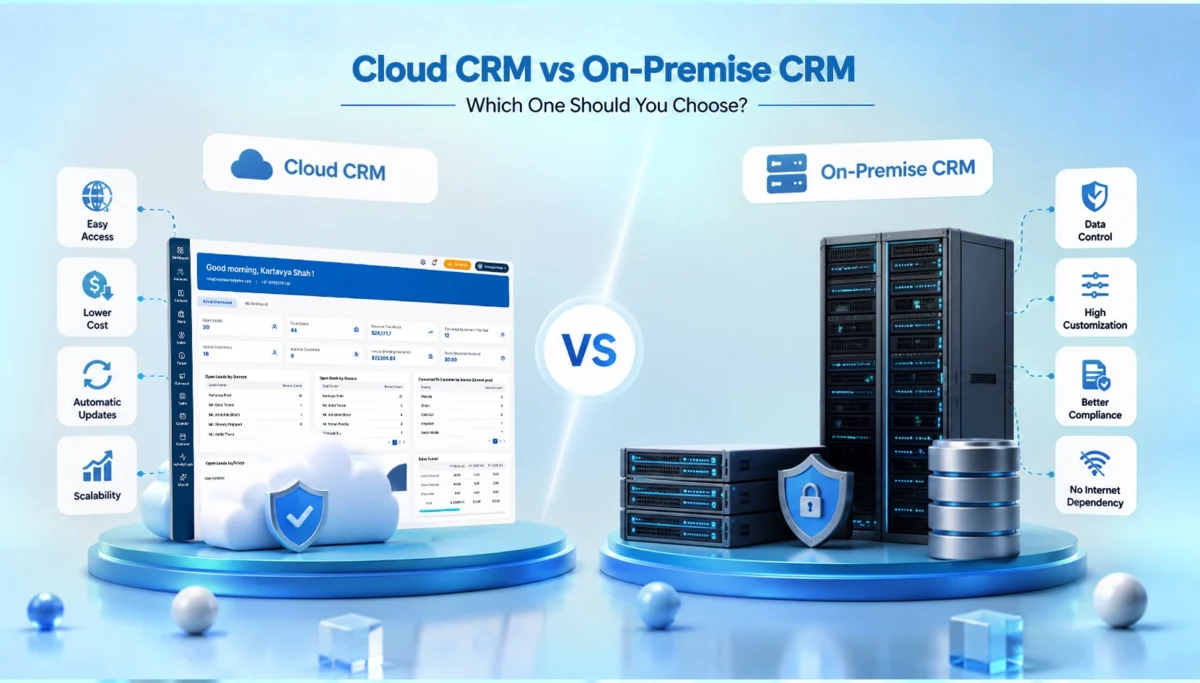
Cloud CRM vs On-Premise CRM: Which One Should You Choose?

Choosing the right CRM is a business decision. Not a tech decision. One that impacts how your teams work, how fast you respond to customers, and honestly, how smoothly your entire operation runs.

If you’re reading this, you’re likely stuck between two options that both sound reasonable – cloud CRM vs on-premise CRM. Cloud CRM keeps coming up because everyone’s choosing that. On-premise CRM keeps coming up because it’s safer, as per your IT team. 

Somewhere in between, you just want a direct answer. Let’s simplify it. No jargon. No fluff. Just a clear and practical guide to help you decide what actually fits your business model.

Cloud CRM vs On-Premise CRM: Quick Overview

Before we go deeper, here’s a simple way to understand the difference:

  • Cloud CRM → Hosted online, accessed through the internet
  • On-Premise CRM → Installed on your company’s own servers

This difference between cloud CRM and on premise CRM changes everything else. It impacts the cost, time to set up, accountability, data access, and the security. 

We’ll take a look at each of these, but first, let’s define both properly.

What Is Cloud CRM?

Cloud CRM, sometimes called SaaS CRM, is customer relationship management software hosted on the vendor’s infrastructure. You don’t install anything heavy. You just start working by logging in. 

You can consider options like Salesforce, HubSpot, or Zoho CRM. The vendor handles servers, updates, security patches, and backups. You just focus on the tool, not the maintenance.

Cloud CRM Features

  • Browser and mobile access from anywhere
  • Pricing based on subscription (monthly or yearly)
  • Automatic software updates
  • Built-in integrations with email, marketing, and support tools
  • Vendor-managed data storage and backups

Advantages of a Cloud CRM

This is why most businesses prefer cloud CRM. Here are some cloud CRM benefits

  • Faster Setup: You can easily get started in days or hours. No heavy installation.
  • Lower Cost: No investment in servers or infra. You only have to pay for a subscription.
  • Easy Access: You can access from anywhere. The office, home, or even while traveling.
  • Automatic Updates: No need for manual upgrades. Everything runs on the latest version.
  • Easy Scalability: Add users, features, or storage as your business grows. It just adapts.

Also Read: Benefits of Custom CRM Software for Growing Businesses

Challenges of a Cloud CRM

It’s not perfect, though. You’re relying on the vendor’s uptime and internet connectivity. If your internet goes down, so does your access. Some businesses also worry about handing sensitive customer data to a third party, especially in industries with strict compliance rules. Long-term subscription costs can add up too, more than people expect when they first sign up.

Implementation of Cloud-Based CRM

Setup usually takes days, not months. Most vendors provide guided onboarding, pre-built templates, and migration tools. It helps them pull data from your old system. Since cloud CRMs are generally built to be intuitive, training is lighter too.

What Is On-Premise CRM?

On-premise CRM software is the traditional model. You buy a license and install the software on your own servers. Then, your internal IT team manages everything from setup to security. There’s no need for the internet for it to function. Also, you have full physical control over the data.

On-Premise CRM Features

  • Hosted on your company’s own servers
  • One-time license fee (sometimes with annual maintenance costs)
  • Full control over data storage and infrastructure
  • Deep customisation potential
  • In-house IT support required

Advantages of On-Premise CRM

Some of the on premise CRM benefits due to which businesses prefer this model:

  • Full Data Control: Your data stays within your infrastructure.
  • Higher Customization: You can tailor the system deeply based on your processes.
  • Better Compliance Handling: Useful for industries with strict regulations.
  • No Dependency on Internet: Local access can work even without internet.

Challenges of On-Premise CRM

The upfront cost is high. You have to pay for servers, licenses, and IT staff to maintain everything. Updates aren’t automatic. So your team has to plan and execute them manually, which takes time and resources. Moreover, scaling up means buying more hardware. Not just clicking a button.

On Premise CRM Implementation

Implementation usually involves purchasing hardware and licenses, installing the software on servers, handling custom development and configuration, migrating data, and then testing everything before deployment. It can take weeks… sometimes months.

Cloud CRM vs On-Premise CRM: Full Comparison

Here’s where it gets practical. Let’s break this down side by side so you can see exactly where each option wins. We have covered everything from cloud CRM vs on premise CRM cost comparison to customization. Here it is:

Factor

Cloud CRM

On-Premise CRM

Cost

Lower upfront, ongoing subscription

High upfront, lower long-term recurring cost

Deployment time

Days to a few weeks

Weeks to several months

Data control

Managed by vendor

Fully managed in-house

Scalability

Easy, usually a plan upgrade

Requires new hardware/infrastructure

Accessibility

Access from anywhere, any device

Typically limited to internal network

Customisation

Moderate, within vendor’s framework

High, fully tailored to your needs

Maintenance

Handled by vendor

Handled by your internal IT team

Security

Vendor-managed, strong but shared responsibility

Fully in your control, but you own the risk too

These factors matter differently for every business. It’s not about which one is “better.” It’s about which one fits you.

Why Most Modern Businesses Choose Cloud CRM

If you look at where the market’s heading, cloud CRM adoption keeps climbing year over year, and it’s not hard to see why once you look at the practical side of running a business today.

  • Faster deployment: Teams want to start selling, not spend three months setting up software.
  • Lower initial costs: Small and mid-sized businesses especially can’t always justify a massive upfront IT investment.
  • Easier scaling: Adding ten new users on a cloud CRM often takes minutes. On-premise, it can mean new servers.
  • Better remote accessibility: With hybrid and remote work becoming normal, teams need tools that work from anywhere. Not only from the office network.
  • Automatic updates: No more waiting on IT to schedule a weekend update window. The vendor handles it in the background.

Must Read: How to Switch from Spreadsheets to CRM Software

When On-Premise CRM Is the Better Option

However, cloud is not always the best option. While some scenarios obviously require on-premise, there are others where it is more appropriate. So, it is not advised to reject it completely.

  • Industries with strict compliance requirements: Industries such as the banking sector, defence and healthcare, often require data storage within the organisation. It’s the law!
  • Data residency laws: Some countries stipulate that data of customers must remain within their borders. Cloud vendors can’t always guarantee this.
  • Specific business processes: If your business processes are industry specific. On-premise provides you the flexibility of creating what you require.
  • Infrastructure investments: If you have already made infrastructure investments and IT staff, then it might not be the best time to switch to the cloud.

Final Verdict: Cloud CRM vs On-Premise CRM

So, which is the one you should choose? Truthfully, it is dependent on the phase of your business you are in.

Have a smaller staff, limited budget, and want to get things done quickly? You’ll likely be better off with cloud CRM software

Operating in a space where compliance is critical, or already have servers and IT personnel that you invested in? However, on-premise may still be a good option.

There is no quick cut in this case. Review budget, compliance, and business plans for the next two years. That’s what should drive the decision, not what’s trending.

And if you’re still confused between cloud CRM vs on-premise CRM, it’s not a bad idea to get in touch with a CRM consultant who’s actually experienced with both. They will help you decide the best CRM software for your business. It’s time to ask now, not later – to switch systems.

Frequently Asked Questions

1. Which is the more secure CRM?

They can both be safe; it’s just whether they’re managed well or not. Cloud puts security in the vendor’s hands. On-premise installs it on your.

2. Is cloud CRM more affordable than On-Premise CRM?

Usually, at first. Cloud is less expensive in the initial stages. However, over the years, subscription prices quickly accumulate and end up at the same cost as on-premise.

3. Which CRM is better suited for small businesses?

In most cases, Cloud CRM. It’s quick to install, requires no IT staff, and can be easily scaled. However, it further depends on your business needs.

4. Can cloud CRM be customized?

Yes, but not fully. You have lots of choices, just in the vendor’s website. It’s not as flexible as on-premise CRM software.

5. Why are businesses moving to cloud CRM?

This is due to its speed, cost and flexibility. Additionally, it requires less special expertise in the IT field. In addition, remote work was even more critical.

6. Which industries still prefer on-premise CRM?

Industries such as banking, healthcare, and government sectors that have stringent compliance requirements may opt for on-premise solutions.

How to Find the Best Project Management Software for Your Business Needs

Managing projects today is not what it used to be. Teams are spread out, deadlines move fast, and there’s always something getting missed: missed updates, unclear responsibilities, or just too many tools doing too little.

And that’s exactly why choosing the best project management software isn’t just a “nice-to-have” anymore. It’s kind of foundational. Because when your projects run smoothly, everything else follows; your team works better, your timelines improve, and your business actually grows instead of constantly troubleshooting.

But here’s the catch: not all tools are built the same. And picking the wrong one? It can slow you down more than it helps.

So let’s break this down – simply, practically, and without unnecessary jargon.

Why Project Management Software Is Essential for Business Success

Running a business without project management software is like driving without a map. You will get to the right place. But along the way, you will waste a lot of money, fuel, and patience.

A good project management solution brings everything into one place. And that changes how your team works completely. Let’s see how.

Improving Team Collaboration

When communication is scattered, people miss context. And when that happens, mistakes follow. Good project management software centralizes that communication – messages, files, updates, tasks. No more digging through emails or asking, “Wait… where was that file again?”

Teams can:

  • Share real-time updates
  • Comment directly on tasks
  • Access shared workspaces without confusion

Enhancing Team Productivity

A good tool helps your team figure out what to work on first. Task prioritization isn’t just a nice feature. It’s the difference between a team that’s only busy and a team that’s actually productive.

Workflow automation improves efficiency and takes it further. Repetitive stuff, like moving a task to “in review” once it’s marked done, happens on its own. And with built-in time tracking, you finally get a real picture of where hours are going, instead of guessing.

Better Project Visibility

Dashboards give you a full view of everything happening across your projects. No need to chase five people for updates. Just open one screen. You’ll know what’s on track, what’s delayed, and what needs attention today.

Key Factors to Consider When Choosing Project Management Software

Choosing software isn’t a generalized decision. What works for a marketing agency with 10 people might not be the case for a manufacturing company with 200 people.

Here’s what actually matters when you’re comparing options.

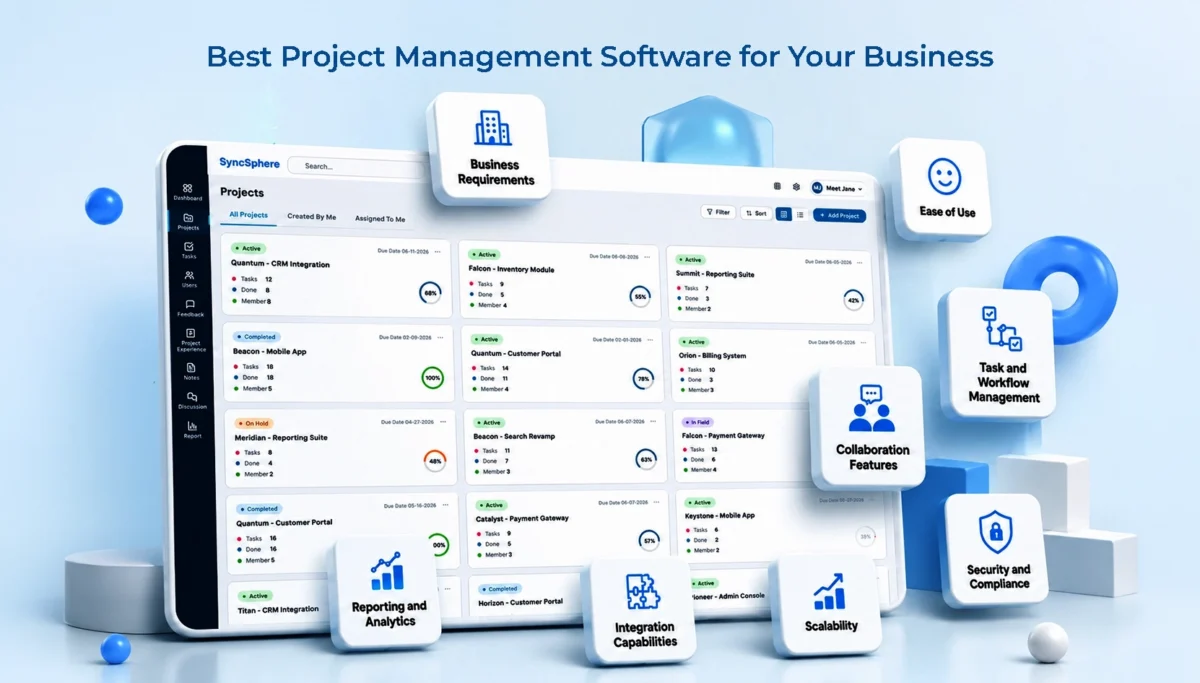
Factor Why It Matters
Business requirements Team size, industry, and project complexity shape what features you actually need
Ease of use If it’s hard to learn, your team simply won’t use it
Collaboration features Messaging, shared workspaces, and notifications keep everyone aligned
Task and workflow management Assigning tasks, setting dependencies, building custom workflows
Reporting and analytics Performance metrics and resource reports help you make better calls
Integration capabilities CRM, communication tools, and cloud storage should connect smoothly
Scalability The tool should grow with you, not hold you back
Security and compliance Data protection, access controls, and the right certifications

Understand Your Business Requirements

Start here. Always. Ask yourself:

  • How big is your team?
  • What kind of projects do you handle?
  • Are your workflows simple or complex?

A small marketing team and a large manufacturing company won’t need the same tool. And that’s okay. The goal is fit, not just features.

Ease of Use

This one gets mostly overlooked. Your team will not use a confusing tool. Simple. Go for something simple enough that has a quick onboarding process and minimal training requirements. Even the most powerful tool is useless if no one wants to use it.

Collaboration Features

Comments, shared workspaces, notifications, these small things add up. They’re what keeps a remote or hybrid team feeling connected instead of scattered.

Task and Workflow Management

This is really the core of any project management tool. Can you assign tasks easily? Are you able to set up dependencies so that work can happen in the right order? Can you build workflows that match how your team actually works?

Reporting and Analytics

Numbers tell the actual story. Performance metrics and reports help you spot hurdles before they turn into bigger problems. Custom dashboards allow each team to see the data that matters to them. It is not just a generic overview.

Integration Capabilities

Your project management tool shouldn’t live on an island. It needs to talk to your CRM, your communication apps, and your cloud storage. Otherwise, you’re just creating another silo.

Scalability

Think ahead. The software that fits your 15-person team today should still make sense when you’re at 50. Flexible pricing plans matter here — you don’t want to pay for capacity you don’t need yet, but you also don’t want to hit a wall in six months.

Security and Compliance

This one’s non-negotiable. Especially if you’re handling client data. Look for solid data protection measures, proper access controls, and relevant compliance certifications for your industry.

Different Types of Project Management Software

Not all tools are built the same. And honestly, choosing the right type matters just as much as choosing the tool itself.

Traditional project management tools

They follow a structured, step-by-step approach. Every task is planned out step by step, with a clear timeline from start to finish. It is good for industries like construction or manufacturing, where the order of the work really matters.

Agile project management solutions

They are built for teams that move fast and adapt often. Think sprint planning, kanban boards, and scrum support. Common in software development and product teams.

Collaborative work management platforms

They are somewhere in between. They’re built for cross-functional teams that need a bit of both. Some structure, some flexibility. This hybrid approach is honestly where most modern businesses land these days.

Common Mistakes Businesses Make When Selecting Project Management Software

A lot of businesses get this decision wrong, and it usually comes down to a handful of avoidable mistakes.

Choosing based only on price

Cheap tools can cost more in the long run. Through inefficiency, limitations, and poor adoption. Value matters more than cost.

Ignoring user experience

Adoption will be low if the user interface feels clunky. No matter how powerful the backend is.

Overlooking future growth

A tool that fits today might not fit in a year. Plan ahead.

Not evaluating customer support

When something breaks (and it will, eventually), you want a support team that actually responds.

Failing to test before purchase

Skipping the trial phase is probably the most common and most costly mistake.

How to Evaluate Project Management Software Before Making a Decision

So how do you actually make a smart choice? A few steps help a lot here.

Request a demo

Watch the tool in action. Ask about implementation – how long does setup take, and what kind of support do you get during onboarding?

Use free trials

Don’t just click around. Load in a real project, assign real tasks, and get feedback from the actual people who’ll use it daily.

Compare features

Build a simple scoring sheet. List out your must-haves, then score each tool against them. This removes a lot of the guesswork.

Review customer feedback

Reviews and testimonials tell you what the sales pitch won’t. Look for patterns, recurring complaints, or recurring praise; both matter.

Why Businesses Choose WeekMate for Project Management

The idea of WeekMate is very simple. Project Management shouldn’t be like additional work on the job.

Simplified project planning is the first thing they notice. It means that you don’t spend time worrying about the complicated setup to get your first project going.

In the end, strong collaboration tools that enable your team to be more linked without the hassle of a dozen different apps.

The ability to adjust the platform to fit your workflow, rather than the other way around.

Next there is actionable reporting and insights – dashboards that truly assist your decision-making and don’t just look pretty.

But since WeekMate is a scalable process for growing teams, you’re not confined to rebuilding your entire process every time you hire someone. WeekMate has a history of being adopted rapidly by businesses. Honestly, it is generally within the first week. This is quite a good indication in itself.

Signs You’ve Found the Best Fit for Your Organization

How do you know when you’ve picked the right tool? A few signs tend to show up pretty quickly:

  • High team adoption rates, without you having to force it
  • Improved project completion times
  • Better communication and transparency across teams
  • Reduced administrative workload
  • Increased stakeholder satisfaction

You know that you have made the right choice if you see most of these within the first few months.

Best Practices for Successful Software Implementation

Even the best project management tool will not be useful if the software rollout is messy. A few things make implementation smoother.

Define clear objectives

Before you start, figure out exactly the problem that you are trying to solve. This keeps the whole rollout focused.

Train your team

You cannot expect people to pick it up on their own. A short training session is an important aspect. It is useful in the long run.

Establish usage guidelines

Set simple rules for how tasks get created, assigned, and updated. Make sure everyone follows the same process.

Monitor performance and adoption

Keep monitoring during the first few weeks. Small fixes early can ideally prevent bigger issues down the line.

Continuously optimize workflows

Keep tweaking your process as your team grows and your needs change over time. This keeps the workflow relevant.

Conclusion

You must understand your team, your workflows, and the direction of your business to select the right project management solution. Price definitely matters. But what also counts is ease of use, scalability, and support.

Take your time. Try a few options. Discuss with the team what to do. If you’re looking for an easy-to-use solution without sacrificing functionality, WeekMate is certainly worth considering. It’s designed for teams looking for more without the extra hassle.

FAQs

1. What’s the best project management software for a small business?

This is dependent on your team’s biggest pain point. In general, though, seek a solution that is simple to use, inexpensive, and truly collaborative rather than task-oriented.

2. Do small teams really need project management software?

Yes, sometimes even more than big teams do. Without an additional level of management, self-organization is even more relevant.

3. Will project management software actually save my team time?

It should, once everyone gets used to it. Most of the time you save comes from not chasing updates or digging through old emails to figure out what’s going on.

4. Can I connect this software with the tools I already use?

Most good platforms, WeekMate included, let you connect with things like your CRM, chat apps, and cloud storage. So you’re not starting from scratch.

5. How fast can my team get up and running with new software?

Usually within a couple of weeks, sometimes less. It really comes down to how much onboarding support the tool gives you at the start.

7 Best Team Collaboration Software for Businesses

If you’ve ever spent twenty minutes digging through five different apps just to find one file someone shared, you already get why collaboration tools exist.

At this point, it’s not even a “nice-to-have” thing anymore. It’s kind of the difference between teams actually getting work done and teams just talking about getting work done.

A few years ago, email plus a shared drive felt enough. It worked. Mostly. But now? Teams are scattered, half remote, half in-office, sometimes across time zones, and suddenly you’ve got tabs everywhere, notifications everywhere, and no real center to anything.

So yeah, one thing’s become pretty clear – businesses need a single place where conversations, files, and actual work can live together.

This guide walks through seven of the best team collaboration tools right now. What they’re good at, where they fall short, and honestly, who they’re actually right for.

What is Team Collaboration Software?

Team collaboration software helps people chat, share files, and get tasks done without everyone needing to sit in the same room

Instead of bouncing between email, a chat app, and some random task tracker, it puts most of that in one spot. Messaging, files, tasks, video calls, sometimes even company announcements, all together.

And really, the goal isn’t to hand your team one more app to deal with. It’s actually to minimise the chaos of using five different apps or tools. If your team is remote or in various time zones, this kind of software just makes everyday work less of a headache.

Benefits of Team Collaboration Software

The benefits are quite obvious. It further adds up once a team actually adopts the right tool properly.

  • Quicker internal communication: Messages get answered within minutes. No more waiting for someone to read their email.
  • Better employee engagement: People feel more connected when updates, wins, and announcements are visible to all, not just stay in a CC email chain.
  • Better cross-team collaboration: Marketing coordinating with product, sales talking to support; it happens naturally when there’s a common space for it.
  • Reduced email dependency: Honestly, this is the best part. Fewer “just following up” emails moving around.
  • Centralized announcements: A common space for company news instead of five different group chats with misleading information.
  • Remote team coordination: Different time zones are no longer a nightmare. Delayed communication actually works in the right way.
  • Improved workplace productivity: With all the information available at your fingertips, less time is spent searching for information. This results in more time actually doing the work.

All of this does not happen automatically. The software you choose needs to meet how your team already works. Otherwise, it just becomes another thing people forget about.

7 Best Team Collaboration Tools in 2026

Let’s get into the actual tools. Starting with one that’s been quietly picking up traction.

WeekMate Connect

WeekMate Connect is made for businesses that want one platform to do the work of three or four. It’s designed to be simple from day one. Teams can get started within a day, not after a week of onboarding calls.

What makes it stand out is the mix of real-time chat with actual structure. You’re not only messaging people. You know what got decided, who’s handling it, and when it’s due. All in the same conversation. 

Key Features

  • Real-time messaging with threaded conversations so context is not lost.
  • Built-in task assignment directly from chat messages
  • Centralized announcement boards for company-wide updates
  • Document collaboration with version history
  • Mobile app that actually feels built for mobile, not a shrunken desktop version

Pros

  • Clean, intuitive interface; minimal learning curve for new employees
  • Strong balance between communication and task management in one place
  • Reasonably priced for small and mid-sized teams
  • Responsive customer support (a rarity, honestly)

Cons

  • Smaller third-party integration library compared to bigger players like Slack.
  • Some advanced reporting features are still being rolled out

Pricing

WeekMate Connect offers a free tier for small teams, with paid plans scaling based on team size and feature needs. It starts with $42.39/month for 50 users. Most businesses find the mid-tier plan covers what they need without overpaying for the enterprise plan.

Best Use Case

It is good for small to mid-sized businesses that want chat and basic project tracking in one place. No need for the cost or hassle of using five different apps.

2. Slack

Slack has actually defined the meaning of team chat. It’s still one of the most reliable options. Channels, DMs, a huge app directory, it fits almost any workflow. Integrations are the best part. Whatever tool your business already uses, there’s probably a Slack plugin for it.

Key Features

  • Public and private channels organised by team, project, or topic
  • Quick voice or video check-ins without a formal meeting
  • Workflow Builder for simple no-code automations
  • One of the largest third-party app directories of any collaboration tool

Pros

  • Flexibility is the best part of Slack. It aligns easily with every team structure. It has the best integrations with CRMs, dev tools, and project platforms. 
  • It also reduces the onboarding time because most new hires already know how to use it.

Cons

  • Costs climb fast once you scale past a certain headcount
  • Notification overload is a real thing if channels aren’t managed well
  • It does not help much with task management, so most teams end up using a separate tool.

Pricing

Slack offers a limited free plan. Paid plans are priced per active user per month. It starts with $3.12/user/month. Costs scale quickly for larger teams, especially on higher plans with extended message history and admin controls.

Best Use Case

Mid-sized to large businesses that rely heavily on third-party tools and want a chat hub that connects everything together.

3. Microsoft Teams

If your business is already running on Microsoft 365, then Teams would be the clear choice. It plugs straight into Outlook, SharePoint, and Office apps, so document collaboration feels easy. It’s a bit heavier than Slack, but for teams already in the Microsoft world, it pays off pretty quickly once people settle in.

Key Features

  • Native to Outlook, Word, Excel, and SharePoint
  • Video meetings with background blur, recording, live captions
  • Channel chats where people can co-edit files in real time
  • The Premium version comes with AI meeting summaries and recaps
  • Built-in enterprise-level security and compliance

Pros

  • Best integration for businesses already using Microsoft 365
  • Strong security and admin controls suited to larger enterprises

Cons

The interface can feel cluttered at first, mostly for smaller teams that do not use all the features. It’s not a good option if your business isn’t already running on Microsoft 365. Also, the performance can lag on older devices.

Pricing

Teams comes jointly with most Microsoft 365 business plans. Also, as a standalone subscription, that starts with $1.21/user/month(paid yearly) + GST. Enterprise plans with AI features and advanced compliance cost more per user.

Best Use Case

Larger organizations already using the Microsoft ecosystem, who want communication and document collaboration tightly connected together.

4. Google Chat

Google Chat is the quieter one in the Google Workspace lineup, but it’s become a genuinely solid tool. It integrates seamlessly with Gmail, Docs, Sheets, and Meet. Teams already on Workspace barely notice they’ve switched. It feels like the same system.

Key Features

  • Direct messages and topic-based spaces for team conversations
  • Native integration with Gmail, Docs, Sheets, and Google Meet
  • Smart compose and AI-assisted replies

Pros

It feels effortless for teams already on Google Workspace, with a clean interface and a short learning curve. Search across messages, files, and spaces is also surprisingly strong — better than a lot of people expect from a “simple” chat tool.

Cons

  • Fewer third-party integrations outside the Google ecosystem
  • Lacks advanced task management or workflow automation
  • Not much reason to adopt it if your team isn’t already on Workspace

Pricing

Google Chat is included with all Google Workspace business plans at no extra cost, with pricing tied to the overall Workspace subscription. It starts with $1.04/user/month

Best Use Case

Businesses already running on Google Workspace that want simple, no-fuss communication without adding another standalone app.

5. Workvivo by Zoom

Worth a quick note here: Workplace from Meta, which used to sit in most “best collaboration tools” lists, officially shut down in 2026 after Meta wound the platform down over the past couple of years. Businesses that relied on it have largely moved to Workvivo, which Zoom acquired and has positioned as the direct replacement. Workvivo leans heavily into employee experience – company news feeds, recognition shoutouts, engagement surveys; layered on top of solid chat and video tools, thanks to the Zoom backbone underneath.

Key Features

  • Company-wide social feed for announcements and recognition
  • Native Zoom video integration for meetings and town halls
  • Employee engagement surveys and pulse checks
  • Mobile-friendly design for frontline and distributed teams

Pros

  • Genuinely strong focus on culture, engagement, and recognition
  • Solid video quality, backed by Zoom’s infrastructure
  • Built with large, dispersed workforces in mind

Cons

Pricing inclines toward larger organizations, so it’s not the most natural fit for small teams. It’s noticeably less focused on day-to-day task management. The migration path for former Workplace users is also still fairly new, so expect a few rough edges.

Pricing

Workvivo uses enterprise-style pricing based on employee count, typically quoted directly through sales rather than a self-serve checkout.

Best Use Case

Large or distributed organizations, especially those migrating off Workplace from Meta, that prioritize employee engagement and internal culture alongside communication.

6. Discord

It started as a gaming chat app, but plenty of businesses have adopted it for internal communication. Voice channels, low cost (often free), and a casual vibe make it appealing for teams that don’t want corporate stiffness in every interaction.

Key Features

  • Drop-in voice channels with no scheduling required
  • Text channels organized by topic or project
  • Custom bots and integrations for light automation

Pros

It’s mostly free, even for fairly large communities. There’s a casual, low-friction feel that smaller teams enjoy. The voice channels make quick syncs easy without needing to schedule a formal meeting for every little thing.

Cons

  • Not built for enterprise compliance or formal admin controls
  • Lacks native task or project management features
  • Can feel too informal for traditional corporate environments

Pricing

Discord is free for core features. There is an optional Nitro subscription for individuals that boosts upload limits and perks rather than unlocking business-specific tools. It starts from $2.99/month.

Best Use Case

Startups, online communities, and creative teams that want a low-cost, informal space to communicate.

7. Zoho Cliq

Zoho Cliq is built around channels, threads and calls. It does not use a feed-style layout like some tools. This works great if you are already using Zoho One or Zoho apps. Zoho Cliq is still solid on its own if you just want a good simple team chat.

Key Features

  • Channels and threads, organized by team or project
  • Audio and video calls with screen sharing built in
  • Schedulers and bots that handle repetitive tasks for you
  • Connects easily with other Zoho apps like Mail, CRM, Projects, and Desk

Pros

  • Zoho Cliq costs a lot less than Slack. It covers most of the same features.
  • It is a win if you are already using other Zoho tools.
  • A few users like the column layout. This makes it easier to keep track of chats at once.

Cons

Calls aren’t quite as smooth as Slack or Teams, and some users mention occasional lag or delayed notifications on mobile. There’s also a character limit per message, which catches people off guard sometimes.

Pricing

There’s a free plan for small teams, and paid plans run about $2 to $18 per user, per month. If you’re already paying for Zoho One, it’s included at no extra cost.

Best Use Case

Great for small to mid-sized businesses, especially ones already using Zoho, who want Slack-like chat without the Slack-like price.

Quick Comparison of the Best Collaboration Tools for Teams

Tool Best For Pricing Style Standout Feature
WeekMate Connect Small-mid teams wanting chat + tasks combined Free tier + affordable paid plans Task assignment directly from chat
Slack Integration-heavy workflows Per-user, scales with team size Massive app directory
Microsoft Teams Microsoft 365 users Bundled with M365 or standalone Deep Office integration
Google Chat Google Workspace users Bundled with Workspace Simplicity and speed
Workvivo by Zoom Large orgs, employee experience Enterprise pricing Engagement + culture tools
Discord Startups, creative teams Mostly free Casual voice channels
Zoho Cliq Existing Zoho customers Affordable, per-user Slack-style chat at a lower cost

Essential Features to Look for in Team Collaboration Software

It becomes much easier to select the right tool once you know what matters and what does not. Some of the most important features to consider in team collaboration software are as follows:

  • Real-Time Team Communication: This is the minimum standard. There should be no delay in the messages between the sender and the receiver. Collaboration software improves workplace communication and must feel seamless and natural.
  • Group Channels and Discussions: Topic-based channels help keep conversations organized. It’s better than one big group chat. Team-based channels work too.
  • File Sharing and Document Collaboration: Sharing documents is easy. You can comment on them without switching apps. This actually saves a lot of time.
  • Employee Announcements: We need a space for company updates. This way important news isn’t lost in chats.
  • Task and Workflow Collaboration: Assigning tasks and tracking them isn’t hard. It would be great if it connects to the conversation.
  • Video Meeting Integration: Video calls should be built-in. At least work well with other apps. No one wants to switch apps for a five-minute call.
  • Mobile Accessibility: A mobile app should be easy to use. Not frustrating, for people who want to check messages on the go.
  • Role-Based Permissions: This is crucial as teams grow. Not everyone needs to see everything.
  • Third-Party Integrations: The tool should connect with existing ones. Like CRM, calendar and project management. No manual work needed.

How to Choose the Right Collaboration Software?

There is no best tool for this. It really depends on your business. A few things to think about are:

  • Team size: A small startup with ten people and a big company with five hundred people have different needs. Do not overbuy.
  • Remote work needs: If your team works from home or different time zones, you need tools that let you work, even when you are not online at the same time. This is more important for teams that’re not in the same office.
  • Communication workflows: Does your team prefer structured channels or more free-flowing conversation? Match the tool to existing habits.
  • Integration requirements: Check what tools you already rely on and make sure the software aligns with them.
  • Employee engagement goals: If culture and engagement are a priority, lean toward tools built with that in mind, not just messaging.
  • Budget considerations: Make sure you consider your budget well. Per-user pricing adds up fast while growing. Keep that in mind, not just current headcount.

A good thing is to try the tool with a group of people first. Most tools have free versions. There is no better way to see than to use it every day. Your business and the tool you choose are important, so take your time and think about what your business needs from the tool.

Future Trends in Team Collaboration Software (2026)

Collaboration tools aren’t standing still, and a few shifts are worth keeping an eye on.

AI-powered workplace communication is showing up everywhere now. Think smart summaries of long chat threads, auto-suggested replies, and meeting notes that write themselves. It’s no longer a gimmick; it’s actually saving people time.

Smart collaboration workflows are also gaining ground, where tools start predicting what needs to happen next based on conversation context, instead of waiting for someone to manually create a task.

Unified communication platforms are becoming the norm too. Businesses are tired of juggling separate apps for chat, video, and tasks, and vendors know it. Expect more all-in-one offerings.

Employee experience tools are getting more attention as companies realize engagement isn’t just an HR initiative. It’s tied directly to retention and productivity.

Hybrid work optimization continues to shape feature roadmaps, with more tools building specifically for the in-office-some-days, remote-other-days reality most businesses now operate in.

And voice & video collaboration keeps growing, with platforms investing in lower-latency calls and more natural-feeling virtual meeting spaces.

Improve Workplace Communication with WeekMate Connect

If you’re trying to decide and don’t want to overcomplicate things, WeekMate Connect is honestly a solid place to start.

It gives you chat, tasks, and structure in one place, without feeling heavy or expensive.

Try the free version, get your team in for a few days, see how it feels. You’ll know pretty quickly if it fits or if it doesn’t. And that’s really what this comes down to. Not the “best” tool on paper; just the one your team will actually use.

Frequently Asked Questions

1. Which collaboration software is best for businesses?

It depends on your team size and needs. WeekMate Connect works well for small to mid-sized teams, while Slack and Microsoft Teams are good for larger organizations.

2. What features should collaboration tools include?

Look for messaging, file sharing, task tracking, video calls, and mobile access. As teams grow, integrations and user permissions become more important.

3. Is collaboration software useful for remote teams?

Yes, it is. It keeps communication clear, stores files in one place, and makes it easier to track tasks when teams work from different locations.

4. What is the difference between communication tools and collaboration software?

Communication tools focus on chatting. Collaboration software includes chat but also adds task management, file sharing, and workflow tracking.

5. Which collaboration software is best for employee engagement?

Workvivo by Zoom is great for engagement. For smaller teams, tools like WeekMate Connect can also support communication and recognition without high costs.

16 Best Project Management Methodologies for Successful Projects

There comes a time in every project where things either click or quietly fall apart. Deadlines drop. Communication breaks.

Teams get stuck in loops. And suddenly, what looked simple turns into chaos.

That is where project management methodologies come into play. Not as rigid rules, but as frameworks that bring clarity, rhythm, and direction to your projects.

Let’s break this down properly.

What Are Project Management Methodologies?

Project management methodologies are structured approaches used to plan, execute, and complete projects.

Think of them like playbooks. They define:

  • How tasks are organized
  • How teams collaborate
  • How progress is tracked
  • And how results are delivered

Some are linear and strict. Others are flexible and adaptive. And honestly, most modern businesses don’t stick to just one anymore. They blend. They experiment. They evolve.

Why Businesses Use Project Management Methodologies

Without a system, projects rely too much on guesswork. And guesswork doesn’t scale. Here’s what the right methodology actually improves:

  • Better team collaboration: Everyone knows their role, responsibilities, and timelines. This reduces confusion and helps teams work more smoothly together without the need for follow-ups.
  • Faster project delivery: Work gets broken down into clear steps with defined deadlines. This makes it easier to move faster without things falling through the cracks.
  • Improved resource management: You can very well see who is working on what and where the resources are being used. This helps to balance the workload across the team.
  • Reduced project risks: Risks can be identified early instead of becoming a last-minute headache. Hence, teams can have enough time to fix issues before they turn into bigger problems.
  • Better communication: With project methodologies, there is always a structured way to share updates, feedback, and progress. So, there is no endless back-and-forth or missed messages.
  • Improved accountability: Every task has a clear owner. There’s no confusion about responsibility. People naturally stay more committed when they know they’re accountable.

Also Read: Why Your Business Need Cloud-Based Task Management Software?

16 Most Popular Project Management Methodologies

Now that we know the benefits of project management software, let us explore the most widely used types of project management methodologies in a clear and practical way to help you understand how each one works in real-world scenarios.

1. Waterfall

Waterfall is probably the most traditional approach, and in some cases, still very effective. It works in a straight line. You finish one phase completely before moving to the next. 

Planning → Design → Development → Testing → Delivery.

There’s a certain clarity here. Everyone knows what comes next. But the downside? Once you move forward, going back is painful. So if requirements change mid-way, things can get messy quickly.

Best fit:

  • Construction
  • Manufacturing
  • Fixed-scope projects

2. PRINCE2

PRINCE2 feels structured. Very structured. It is based on processes, documentation and roles. Every stage is planned, reviewed, and controlled carefully.

This means it’s extremely reliable for big projects, particularly those working in government or enterprise settings where accountability is an important factor. That is true, you may find it heavy at times. Not so great if you are looking for flexibility or quick iterations.

Best fit:

  • Government projects
  • Large enterprises

3. PMBOK (Project Management Body of Knowledge)

PMBOK is not really a methodology. It’s more of a “how-to”. It outlines good practices, principles and knowledge areas that project managers can use in any industry.

Imagine it as a bottom, or a base. A reference point. Many project managers who are certified use PMBOK to organize their projects, but they tend to use it together with other project management methods to make it easier to use.

Best fit:

  • Teams needing standardized practices
  • Certification-driven environments

4. Scrum

Scrum is where things start getting more dynamic. Work is divided into short cycles called sprints, usually 1 to 4 weeks. Each sprint delivers a usable piece of the product.

There’s constant feedback. Daily stand-ups. Quick adjustments. It creates momentum. Teams feel progress.

But it also requires discipline. Without proper planning and communication, Scrum can easily become chaotic.

Best fit:

  • Software development
  • Startups

5. Kanban

Kanban is simple, and that’s its strength. Everything is visual. Tasks move across stages like “To Do”, “In Progress”, and “Done”. You can literally see bottlenecks forming.

Unlike Scrum, there are no fixed timelines or sprints. Work flows continuously. It’s perfect for teams handling ongoing tasks like support, operations, or content pipelines.

Best fit:

  • Continuous workflows
  • Operations teams

6. Agile

Agile is all about flexibility and continuous improvement. Instead of planning everything up front, teams work in small cycles (called sprints). This makes it easier to adapt to changes as the project evolves.

It is useful for projects where requirements can change frequently, like software development or digital products.

Best fit:

  • Projects where requirements are not fixed.
  • Fast-moving teams that need to deliver in stages.

7. Extreme Programming (XP)

Extreme Programming, or XP, is all about quality and adaptability in software development. It encourages frequent releases, continuous testing, and constant feedback from users.

Developers often work in pairs. Code is reviewed continuously. It sounds intense, and it is, but the result is highly reliable software with fewer bugs.

Best fit:

  • Tech teams
  • High-change environments

8. Scrumban

Scrumban is a mix of Scrum and Kanban. It combines Scrum’s planning with Kanban’s visual workflow.

This gives teams structure while still allowing flexibility. Teams often use Scrumban when Scrum feels too strict, and Kanban feels too unstructured.

Best fit:

  • Teams transitioning to Agile

9. Rapid Application Development (RAD)

RAD is built for speed. Teams quickly build, test, and improve based on feedback. It focuses on user needs.

You see results early and keep improving them. This makes RAD ideal for UI-heavy apps or MVPs where speed matters more than perfection.

Best fit:

  • UI/UX-heavy projects
  • MVP launches

10. Critical Path Method (CPM)

CPM is all about timelines. It identifies the longest sequence of dependent tasks, the “critical path” that determines how long the project will take.

If any task on this path is delayed, the entire project gets delayed. This makes it incredibly useful for complex projects where timing is everything.

Best fit:

  • Complex, deadline-driven projects

11. Critical Chain Project Management (CCPM)

CCPM emphasizes resource management rather than task order management. It acknowledges that delays may occur when people or resources are not available.

It helps teams keep on schedule even when things aren’t going their way by planning resources and adding buffers.

Best fit:

  • Resource-constrained environments

12. Lean

Lean is about doing more with less. It focuses on eliminating waste; anything that doesn’t add value to the final outcome.

This could be unnecessary meetings, extra features, delays, or redundant processes. Lean forces teams to ask a simple question again and again: “Does this actually matter?”

And that mindset can transform how teams work.

Best fit:

  • Process optimization
  • Manufacturing & SaaS

13. Six Sigma

Six Sigma is a quality improvement methodology based on data. It is designed to minimize mistakes with problem solving techniques.

It is based on measurement, analysis and continual improvement. Often used in production and large-scale operations when consistency is important.

Best fit:

  • Quality control
  • Large-scale operations

14. Adaptive Project Framework (APF)

APF accepts one important reality: Not everything can be planned up front.

So instead of forcing structure, it adapts as the project evolves. Requirements can change. Direction can shift. And that’s okay.

APF works best in environments where uncertainty is high and flexibility is more valuable than rigid planning.

Best fit:

  • Uncertain or dynamic projects

15. Hybrid Methodology

This is where most modern teams are.

Hybrid methodology combines elements from different approaches, like using Scrum for development, but Waterfall for planning. It’s practical. Realistic.

Because let’s be honest, no single methodology fits every situation. Hybrid gives you the freedom to build your own system based on what actually works.

Best fit:

  • Real-world business scenarios

16. Outcome Mapping

Outcome Mapping focuses on results instead of tasks. Instead of just tracking deliverables, it tracks behavioral changes and outcomes.

It is often used in social projects, NGOs, and initiatives where success is not about project completion. It is about real-world change.

It’s a different way of thinking, and in the right context, incredibly powerful.

Best fit:

  • Social projects
  • NGOs

How to Choose the Right Project Management Methodology

There’s no “best” method. Only the best fit. Here’s what actually matters:

1. Team Size

Small teams → Agile (like Scrum or Kanban) works better
Large teams → Structured frameworks help

2. Project Complexity

Complex → Use structured models
Simple → Keep it flexible

3. Industry Requirements

Some industries require strict compliance.

4. Budget & Timeline

Tight deadlines → Agile or Hybrid

5. Flexibility Needs

If change is constant, avoid rigid models

6. Stakeholder Involvement

More stakeholders → More structure required

Pause here for a second. If your team struggles with delays or misalignment, it’s rarely a “people problem”.

It’s usually a process problem.

Manage Projects Efficiently with TaskHub

Methodologies provide structure, and the right project management software makes them work. 

However, if the tools aren’t in place, tasks can get lost, updates are missed, and teamwork becomes difficult. They assist teams in organizing tasks, monitoring progress and keeping everyone on the same page. 

Tools such as TaskHub make things easy and provide sufficient control for project management.

The bottom line is making your staff more productive, organized and consistent. 

Frequently Asked Questions

1. Which is the best project management methodology?

There cannot be a specific answer as such. Agile and Hybrid are used these days often as they are flexible. It largely depends on your requirements of your business.

2. What is the meaning of Agile methodology?

Agile is a way of working where tasks are completed in small, repeatable steps.

3. What is the difference between Agile and Scrum?

Both are related to project management. While Agile is a mindset, Scrum is a framework that is a part of Agile.

4. When should businesses use the Waterfall methodology?

Waterfall methodology is very structured. So, when the requirements of your project are fixed and unlikely to change, you can use it.

5. Which methodology is best for small teams?

Scrum or Kanban usually works best due to flexibility.

6. Can businesses combine multiple methodologies?

Yes. And most modern businesses already do. Hybrid methodologies are very popular these days.

SAP vs WeekMate: Find the Best Workforce Management Software for Your Organization

Managing your workforce isn’t easy. You’re tracking attendance, planning shifts, handling leave, and running payroll – all at once. Miss a connection between these, and small mistakes turn into big headaches.

This is where the best workforce management software helps. Two names come up a lot: SAP and WeekMate. SAP is a large, global system. WeekMate is built for Indian businesses.

In this article, we’ll compare both SAP and WeekMate. You can pick what fits your business.

What Exactly Is Workforce Management Software?

A workforce management system helps you manage your people – when they clock in, where they’re working from, how shifts are planned, and how it all connects to payroll.

Most good platforms cover:

  • Tracking attendance (biometric, GPS, or app-based)
  • Shift scheduling
  • Leave management
  • Payroll integration
  • Workforce analytics, to spot things like absenteeism or overtime
  • Labour law compliance

Done right, this saves HR teams hours every week. And a wrong tool just adds more work.

SAP Workforce Management: A Quick Overview

As you all are mostly aware, SAP is one of the largest enterprise software companies in the world. Its workforce management tools usually come bundled with its broader SuccessFactors or ERP suite.

It’s built for large enterprises and multinationals – companies already running SAP for finance or HR at scale. It easily handles complex organizational structures and multi-country compliance. SAP really helps if you’ve got thousands of employees across many countries.

But for smaller businesses, it does not help much. Implementation takes months, costs add up fast, and the interface is not for very simple tasks. Like, someone just wants to mark attendance and move on.

It works best for companies with a dedicated IT team, a complex ERP already in place, and the budget for a long rollout.

WeekMate Workforce Management: A Quick Overview

WeekMate takes a different approach. It is an HRMS and payroll software in India built specifically for how businesses actually operate.

It is for SMEs, mid-sized companies, and growing businesses that need a system up and running fast, without hiring a small army of consultants.

Some of the features include attendance tracking (with GPS, geo-fencing, and face recognition included), shift scheduling, leave management, payroll sync, and a mobile app that works well for field and on-ground staff.

It’s mobile-first, so field employees and shift workers can mark attendance from wherever they’re working. Setup takes days, not months. And because it’s built with Indian compliance requirements in mind, HR teams don’t need to add on extra tools for statutory needs.

When something breaks or needs modifications, you have a local team to assist you. They understand the context, and you do not have to route a ticket through multiple time zones.

SAP vs WeekMate: Feature Comparison

Here’s the comparison between the two, feature by feature:

Feature SAP WeekMate
Employee Attendance Tracking Yes Yes
Shift Scheduling Yes Yes
Leave Management Yes Yes
Payroll Integration Yes Yes
Mobile App Yes Yes
GPS Attendance Limited, depends on the module Yes
Geo-fencing Limited Yes
Face Recognition Attendance Optional add-on Yes
Employee Self Service Yes Yes
HR Dashboard Yes Yes
Custom Reports Yes Yes
Ease of Use Moderate High
Setup Time Longer Faster
Customer Support Enterprise-level Dedicated local support
Pricing Higher Affordable

On paper, both check similar boxes. The real difference shows up in how fast you can get value out of it and how much it costs to get there.

Attendance Tracking: Where WeekMate Pulls Ahead

Attendance is where most workforce management tools either win or lose trust. SAP supports biometric and card-based attendance well, but GPS tracking and geo-fencing often depend on which module or add-on you’ve licensed, which means extra cost and extra configuration.

WeekMate builds these in from the start. GPS attendance, geo-fencing for site-based teams, and face recognition all come as part of the core offering. For businesses with field staff, delivery teams, or multiple work sites, this matters more than it sounds. It means real-time, proper attendance without combining separate tools.

Shift Scheduling and Workforce Planning

Both platforms handle rotational shifts, night shifts, overtime, and shift swapping. 

SAP’s scheduling engine is built for complex, rule-heavy setups such as union agreements or multi-shift factories with strict labour laws.

WeekMate keeps it simpler, without missing anything. Auto-scheduling, shift swaps, and forecasting are all there, just easier to use. For most mid-sized teams, that’s the right balance.

Payroll and HR Integration

This is where a disconnected system really lacks. If attendance doesn’t sync with payroll automatically, someone has to do the calculations manually. This is where mistakes happen.

Both SAP and WeekMate offer payroll integration, leave syncing, and centralized employee records. 

SAP’s strength is connecting payroll with a much broader ERP ecosystem: finance, procurement, inventory, all connected.

WeekMate focuses specifically on getting attendance-to-payroll automation right. For a business that isn’t running a full ERP, it is all that is needed.

User Experience and Implementation

SAP usually means an enterprise-level setup. Dedicated training and onboarding that can take weeks or months.

WeekMate is simple and quick to deploy. Training takes little time, and teams pick it up fast since it doesn’t feel like learning something new.

Which Businesses Should Choose SAP?

SAP makes sense if you’re:

  • A large enterprise or multinational
  • Already running other SAP modules and need tight integration
  • Operating across multiple countries with complex compliance needs
  • Backed by a large IT team that can manage ongoing configuration

Which Businesses Should Choose WeekMate?

WeekMate tends to be the better fit for:

  • SMEs and mid-sized companies
  • Startups that want to move fast without heavy IT support
  • Manufacturing, healthcare, retail, logistics, and education sectors
  • Field workforce and multi-location businesses that need mobile-first tracking

Pros and Cons at a Glance

Let’s take a look at some of the pros and cons:

SAP

Pros: Enterprise-grade capabilities, advanced integrations, strong global presence, extensive modules for large organizations.

Cons: Expensive, complex implementation, and a longer learning curve for everyday users.

WeekMate

Pros: Easy to use, affordable, fast deployment, strong attendance tracking, mobile-friendly, local support, and scalable as your team grows.

Cons: Fewer advanced ERP-level modules compared to SAP, though for most SMEs, this isn’t a gap that’s actually felt day-to-day.

Why WeekMate Is a Strong SAP Workforce Management Alternative

If SAP feels like overkill for where your business is right now, WeekMate is worth a serious look. It brings faster implementation, lower overall cost, a genuinely modern interface, and mobile workforce management that’s built for how Indian teams actually work on the ground.

Add in attendance automation that just works, and support that understands local compliance without you having to explain it every time.

Final Thoughts

SAP earns its reputation for a reason. It’s built for huge-scale businesses with complex ERP needs. But for startups, SMEs, and growing companies in India, that scale often adds more baggage than benefit.

WeekMate is simple, affordable, and grows with your business, without the long rollout or the high price tag.

Look at where your business actually is today. Not where it might be in five years. If you need something that gets your team running fast, WeekMate is worth a look.

FAQs

1. Can WeekMate handle growing or multi-location businesses?

Yes. WeekMate works well for SMEs, startups, and mid-sized businesses, including ones with multiple branches or field teams. It’s built to grow with your team, so you won’t need to switch systems later. Very large, multi-country enterprises may still prefer SAP, but for most growing businesses in India, WeekMate does the job well.

2. Does WeekMate support GPS and geo-fencing attendance?

Yes. GPS attendance and geo-fencing come built into WeekMate’s core offering, along with face recognition attendance. No separate add-ons needed.

3. How long does WeekMate take to implement compared to SAP?

WeekMate typically gets businesses up and running within days. Due to the scale and complexity, SAP implementations take several weeks to months.

4. Is WeekMate a good alternative to SAP for Indian businesses?

For businesses focused on the Indian market with mobile, field-based, or multi-location teams, WeekMate offers a faster, more affordable, and locally supported alternative to SAP’s workforce management capabilities.

5. Which is more cost-effective – SAP or WeekMate?

WeekMate is generally more affordable, especially for SMEs, since it avoids the licensing, consultant, and long-term maintenance costs. These costs are typically associated with SAP implementations.

Become A Partner